
How to Activate eSIM on iPhone
Last updated on August, 8, 2025
| Customers who are planning to visit Hong Kong and Taiwan, please click here to complete real-name registration. |
How to install eSIM
These steps may differ depending on your device and language.
Important Notice
|
|
Make sure you have an eSIM compatible and network-unlocked device. |
|
|
Be connected to a strong WiFi to activate an eSIM successfully. |
|
|
Be noted that the validity begins once you install the eSIM. |
|
|
Please do not remove the eSIM without consulting CS Team. |
01
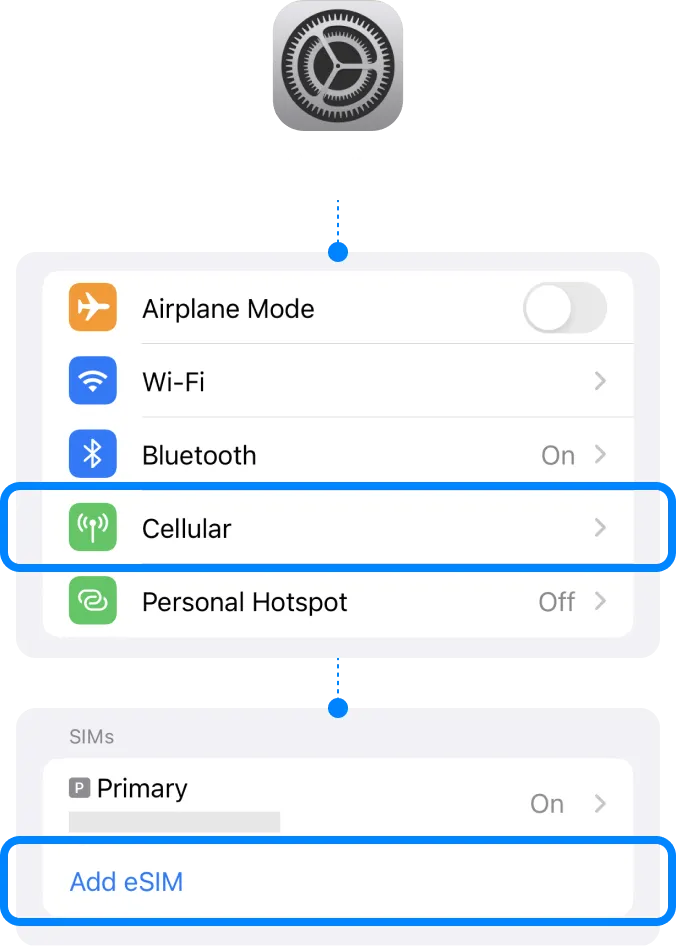
Add eSIM from the device’s Settings.
For iOS, 17.4 or newer, try the QUICK INSTALLATION link in your QR voucher email.
Go to Settings
| ▸ | Select [Cellular/Mobile Service] |
| ▸ | Tap [Add eSIM/Data Plan] |
02
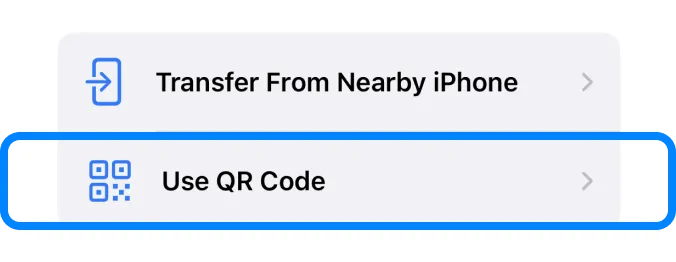
Select [Use QR Code] to install the eSIM.
For versions before iOS 16, this step will be skipped. Please move to the next step.
03
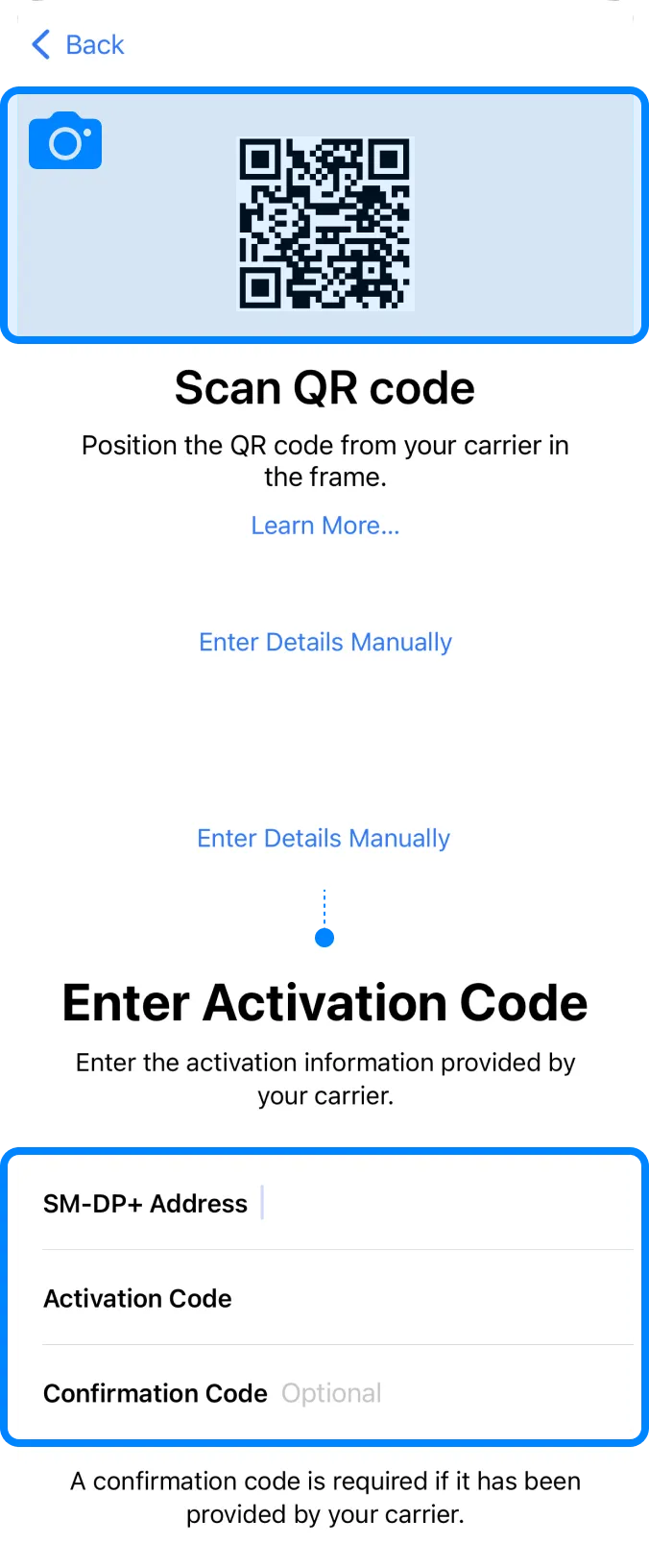
Install eSIM via QR code or manual installation.
04
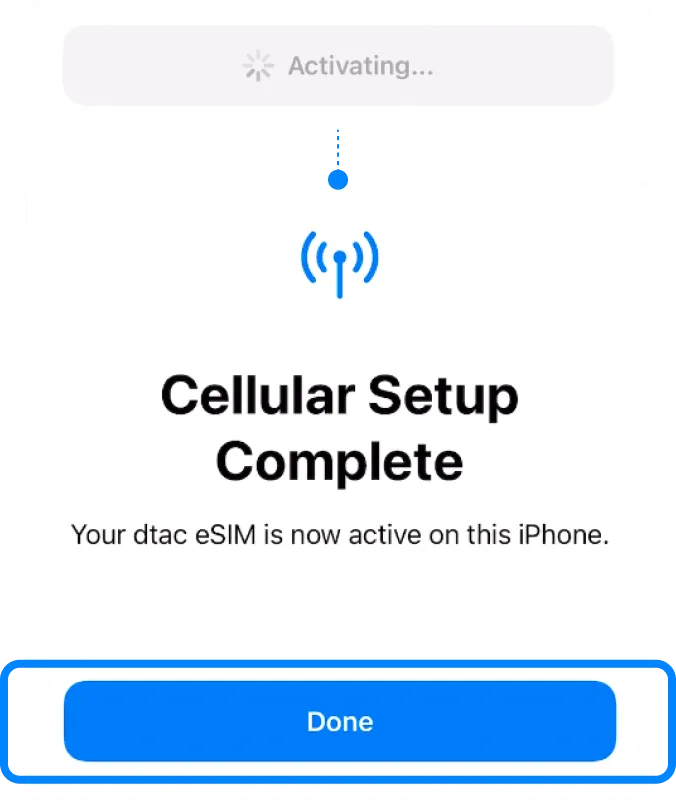
Wait for eSIM to activate successfully.
Your eSIM will be connected to the network, which may take a few minutes. Once completed, tap “Done”.
05
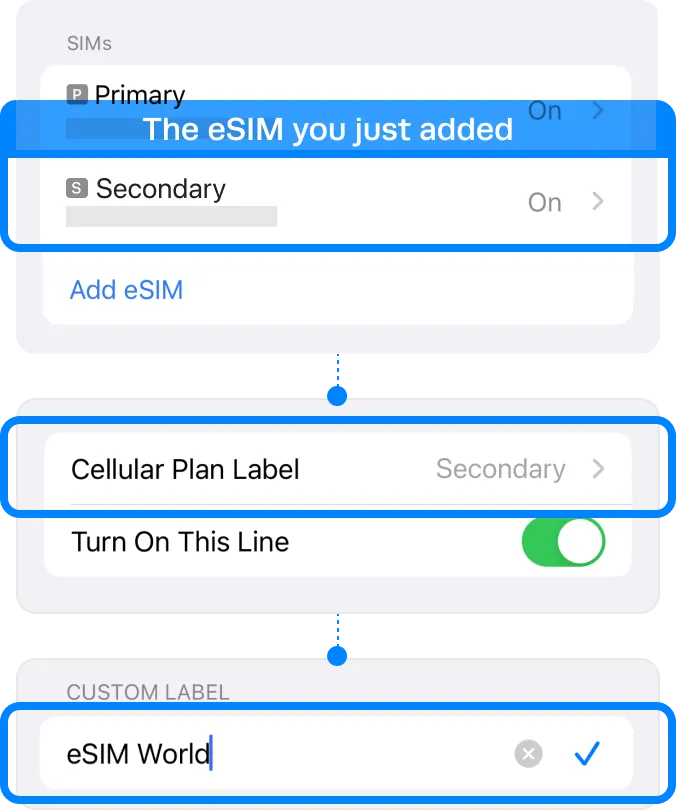
Label your eSIM.
After the successful installation, you can label it for more convenient management.
Go to Settings
| ▸ | Select [Cellular/Mobile Service] Select our eSIM under the SIMs section. |
| ▸ | Tap [Cellular Plan Label] Type in the ‘Custom Label’, e.g. {Destination} – eSIM World. |
Installation Completed
The installation steps are done!
You are almost ready to use the data.
How to check if your eSIM is activated
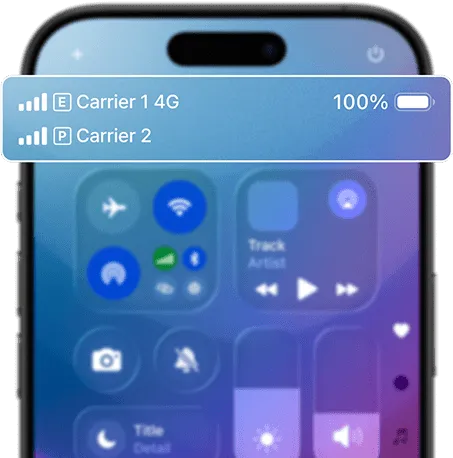
You can confirm your eSIM is activated by checking these two things:
- Signal and network: If activated, your device will show 2 signal bars and the carrier name in the status bar.
- eSIM settings: In your device settings, you should see an active eSIM profile listed.
How to checkif your eSIM is activated
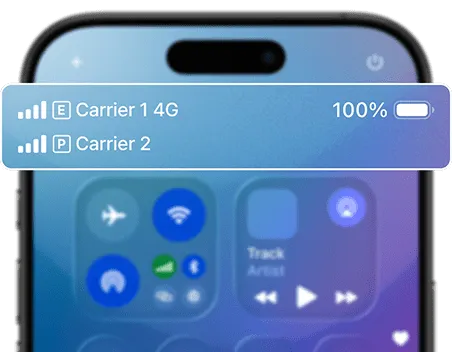
You can confirm your eSIM is activated by checking these two things:
- Signal and network: If activated, your device will show 2 signal bars and the carrier name in the status bar.
- eSIM settings: In your device settings, you should see an active eSIM profile listed.
How to Access Data
These steps may differ depending on your device and language.
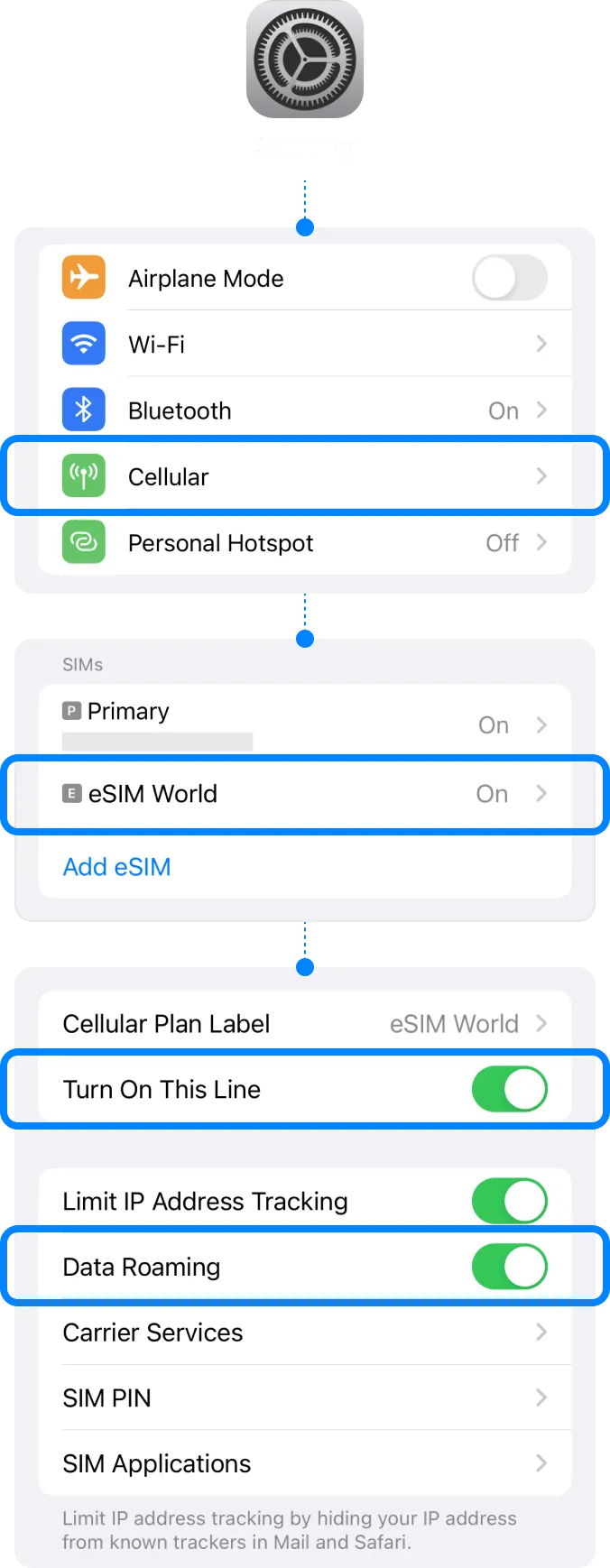
01
Turn on the eSIM.
Go to Settings
| ▸ | Select [Cellular/Mobile Service] Select our eSIM under the SIMs section. |
| ▸ | Toggle on ‘Turn on this Line’ |
| ▸ | Toggle on ‘Data Roaming’ For your domestic SIM, please toggle off ‘Data Roaming’. |
02
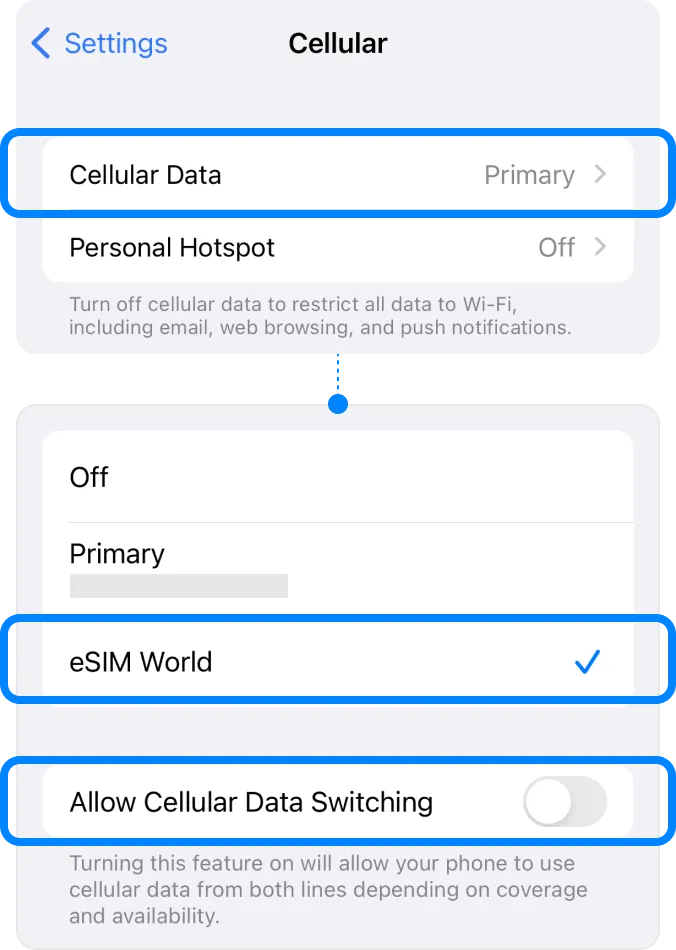
Select your eSIM on [Cellular Data].
Go to Settings
| ▸ | Select [Cellular/Mobile Service] |
| ▸ | Tap [Cellular Data] Select your eSIM. |
Troubleshooting
Still can’t access internet
If you installed the eSIM well, but cannot access the internet, please try the troubleshooting below. Also, please DO NOT remove the eSIM, since in most cases, our eSIM cannot be reinstalled or regenerated.
01
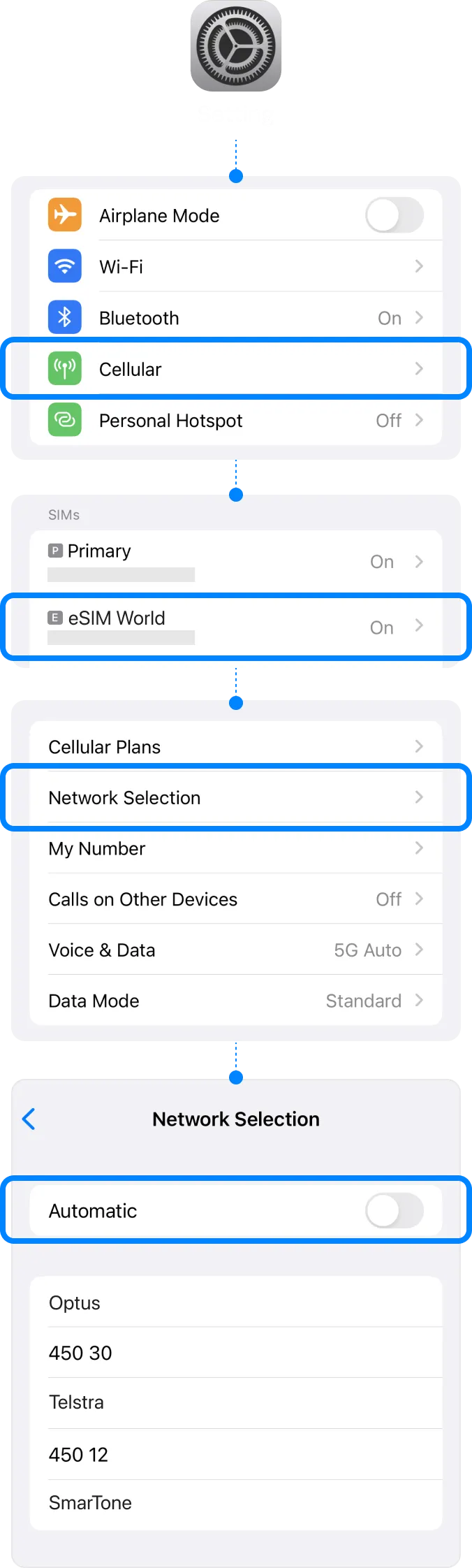
Manually perform Network Selection.
Go to Settings
| ▸ | Select [Cellular/Mobile Service] Under ‘SIMs’, choose your eSIM. |
| ▸ | Choose [Network selection] To perform a manual search. |
| ▸ | Toggle off ‘Automatic’ |
02
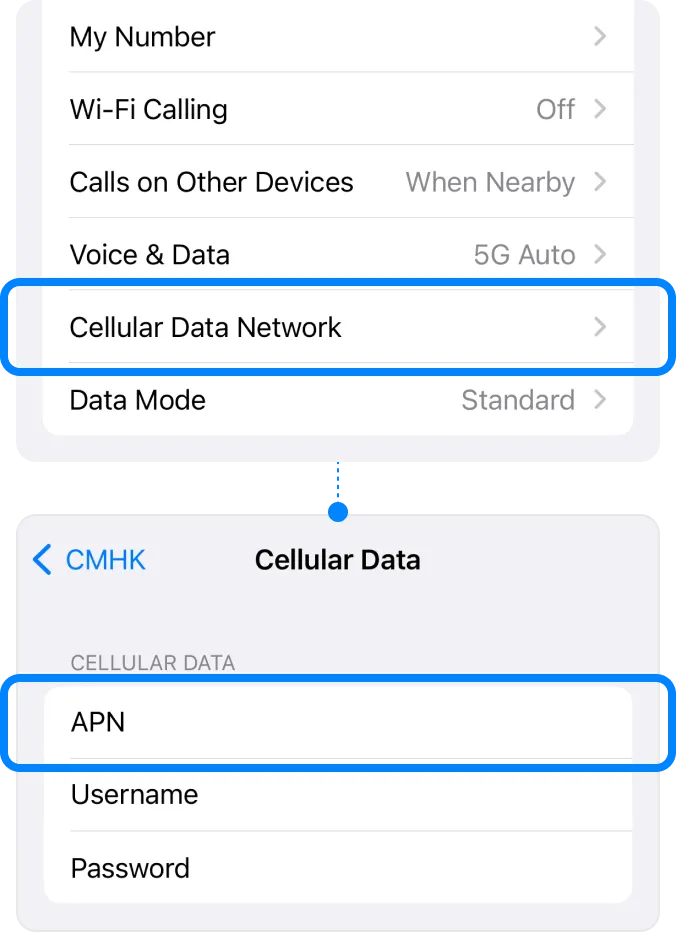
Set up APN manually if you have access.
Go to Settings
| ▸ | Select [Cellular/Mobile Service] Under ‘SIMs’, choose your eSIM. |
| ▸ | Go to [Cellular Data Network] Type the APN information. |
How to select local phone number
If you have trouble using the local phone number, and cannot make a call or send an SMS, please follow the steps below.
Important! This instruction is only applicable to the eSIM plans which include local phone number and Calls feature.
01
Select your eSIM on [Default Voice Line].
Go to Settings
| ▸ | Select [Cellular/Mobile Service] |
| ▸ | Tap [Default Voice Line] Select your eSIM. |
02
If you want to switch line while using eSIM, follow the steps by the cases.
i) Sending SMS
Go to Messages
Select any converation.
| ▸ | Tap ‘Contact info’ |
| ▸ | Tap ‘Conversation line’ Select your Primary Line or eSIM. |
ii) Making a call
Go to Phone
| ▸ | Tap ‘Keypad’ at the bottom Switch the line by tapping the grey box at the top. |
Before using eSIM
* The following steps only apply to visitors to Hong Kong and Taiwan.
To successfully use eSIM in Hong Kong & Taiwan, a real-name registration is mandatory. Make sure that you complete the registration before arriving in Hong Kong & Taiwan.
Review the directions,
then click the button to start registration.
Destination
Select the destination for real-name
registration.

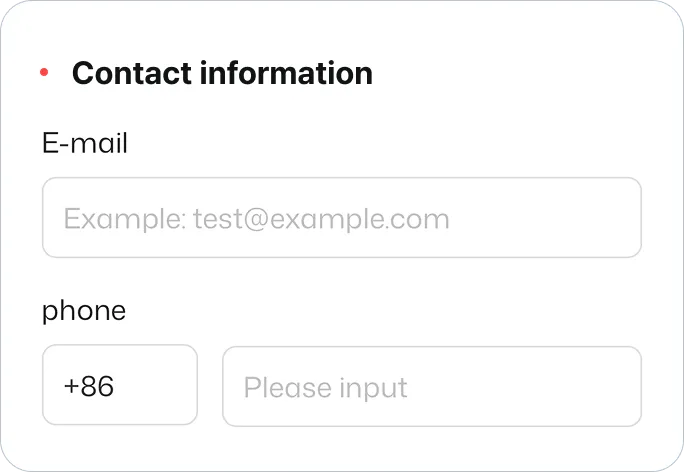
Contact information
Provide either your email address or
phone number.
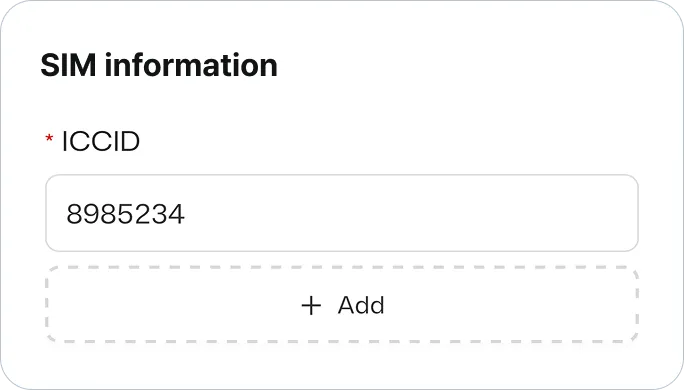
ICCID
Put ICCID of the eSIM for your destination, Taiwan or Hong Kong.
Find ICCID in the email with the QR code.
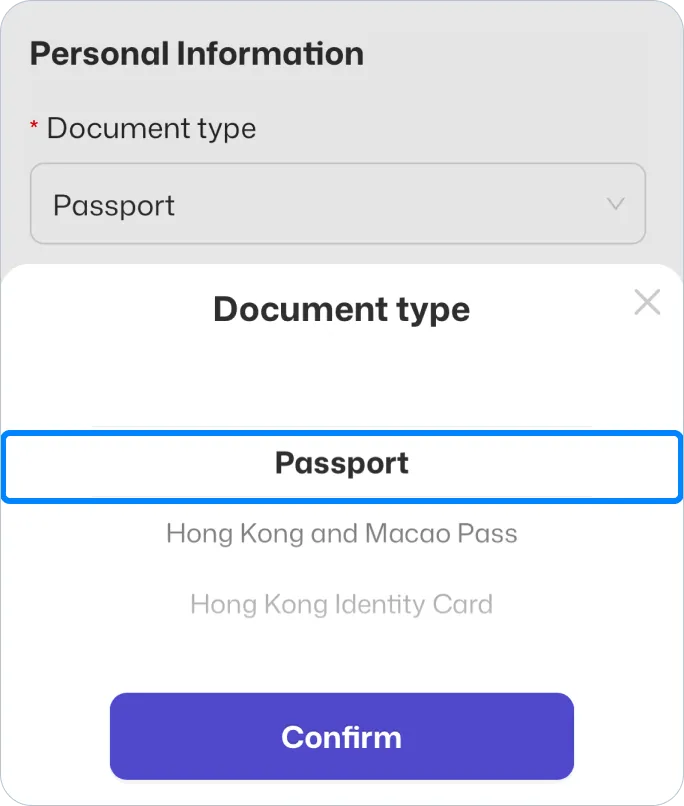
Document Type
Select “Passport” and click confirm.
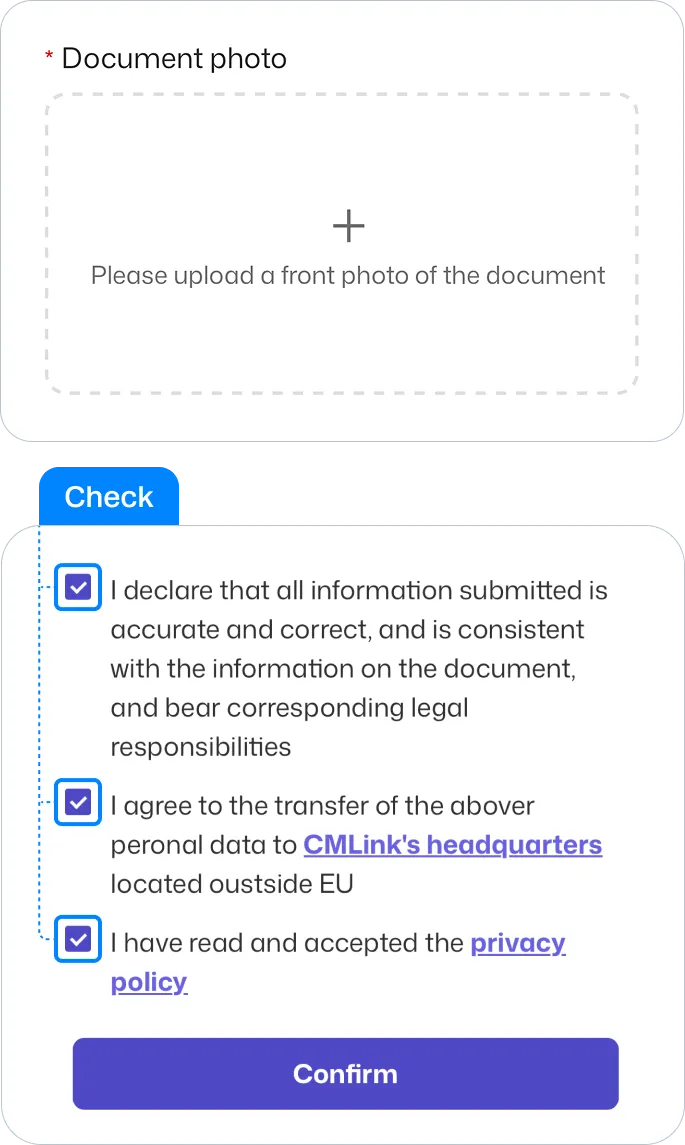
Document Image
Upload picture of your passport.
Check the box and click confirm.